
If you ever get the message
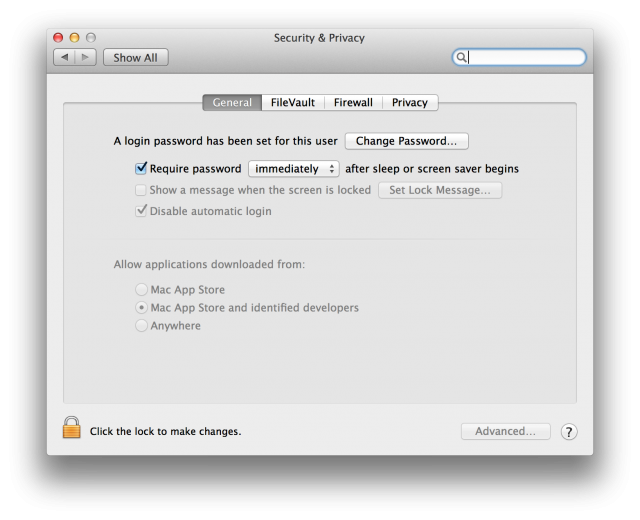
It’s because our image doesn’t allow faculty to download apps from “Anywhere.” To open the application, right click (or Ctrl+Click) and choose “Open.”
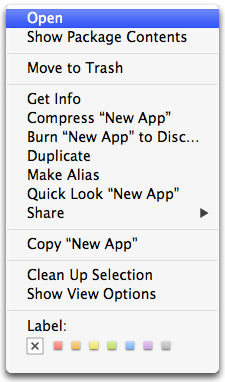
The popup will happen again, but it will also have “Open” as an option now.
Alternatively, you can open System Preferences
Go to Security & Privacy > General
And after you’ve cancelled the popup from the first image, a message will show up saying something along the lines of
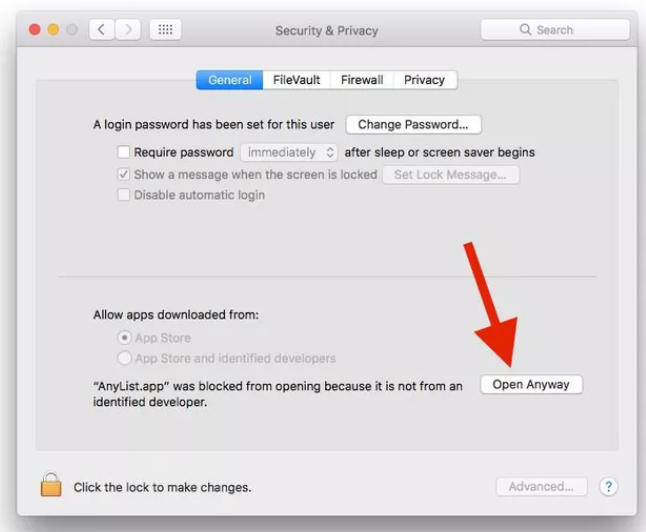
Click “Open Anyway.” It will bring up image 3 again for you to click “Open” in the popup.
For one final solution, you can allow apps from anywhere from the terminal.
sudo spctl –master-disable
The next time you open System Preferences, the “Anywhere” option will not only be listed but also selected, allowing you to install apps from any source whatsoever. If this unfettered access begins to worry you, you can reverse course and hide the “Anywhere” option with this Terminal command:
sudo spctl –master-enable
Sources:
http://www.iclarified.com/28180/how-to-open-applications-from-unidentified-developers-in-mac-os-x-mountain-lion
https://www.cnet.com/how-to/3-ways-to-install-apps-from-unidentified-developers-on-macos-sierra/